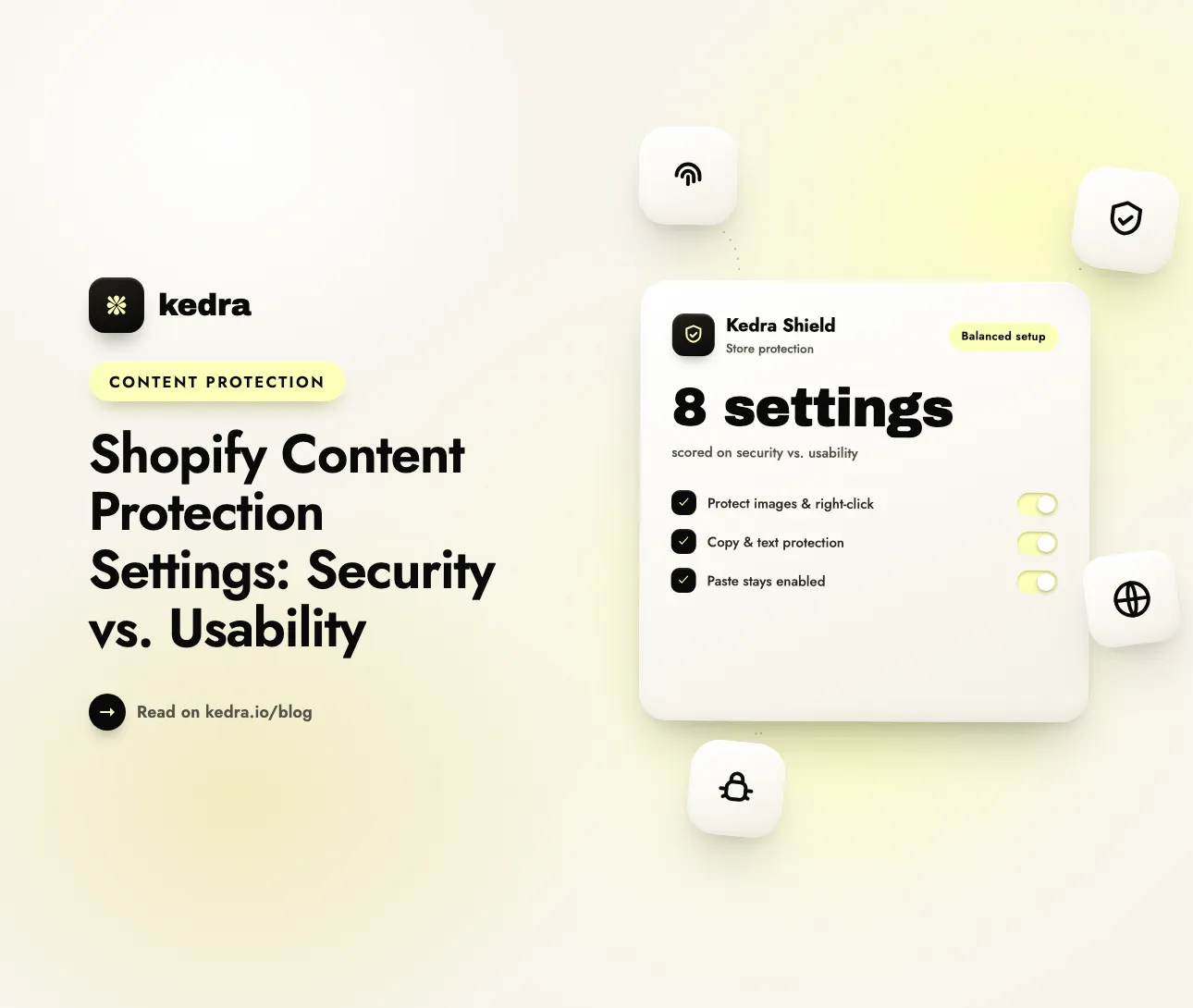
The right Shopify content protection settings block theft where it actually happens - image saving, right-click and copying product copy - and leave alone the things shoppers need: pasting into forms, find-on-page, zoom and mobile gestures. Turn on image protection and right-click blocking for everyone, use copy and shortcut blocking selectively, and almost never block paste.
That balance matters because content protection works in both directions. It stops competitors and dropshippers from lifting your product photos and descriptions - copyright-tracking firm Copytrack’s Global Infringement Report estimated that over 2.5 billion images are stolen online every day. But a protection script that blocks too much becomes a bug from the shopper’s point of view. In Baymard Institute’s checkout abandonment research (page updated September 2025), 17% of US shoppers abandoned an order because the “website had errors / crashed” and 19% because they “didn’t trust the site with my credit card information.” A store where paste silently fails or keyboard shortcuts stop working looks broken - and broken looks untrustworthy.

Table of contents
- What is content protection on a Shopify store?
- Which content protection settings should you turn on?
- Where does content protection frustrate real customers?
- Should you ever block paste on your store?
- How strict should your settings be for your type of store?
- How do you test content protection without hurting conversions?
- How to set up balanced content protection with Kedra Shield
- Frequently Asked Questions
What is content protection on a Shopify store?
Content protection is a set of browser-side controls that make it harder for visitors to save, copy or inspect a store’s images, text and code. On Shopify, content protection is added through a theme script or an app embed, because Shopify itself does not ship a “disable right-click” or “disable copy” setting in the admin.
A complete content protection setup is made of separate switches, and each switch has a different security value and a different usability cost:
- Image protection - stops “Save image as…”, image dragging and direct image downloads.
- Right-click blocking - removes the browser context menu (where “Save image”, “Copy” and “View page source” live).
- Text and content protection - prevents highlighting and selecting product descriptions.
- Copy blocking - stops
Ctrl/Cmd+Cand the “Copy” command on page text. - Paste blocking - stops
Ctrl/Cmd+Vinto input fields. - Keyboard shortcut blocking - disables shortcuts such as
Ctrl/Cmd+S(save page) andCtrl/Cmd+U(view source). - Developer tools blocking - deters
F12andCtrl/Cmd+Shift+I, the shortcuts that open the browser inspector. - Inactive-tab blurring - blurs the page when the visitor goes idle, which frustrates screen-scraping tools.
The mistake most merchants make is treating these as one “protect my store” switch. They are not. Image protection costs a legitimate shopper almost nothing; paste blocking can stop a returning customer from logging in. If you are new to the basic setup, our guide on how to disable right-click and protect images on Shopify covers the code route step by step. This guide focuses on the next question: how much protection to turn on.
Which content protection settings should you turn on?
Turn on image protection and right-click blocking for every store, add text and copy protection when your product copy is original, and treat paste, shortcut and developer-tool blocking as situational. The table below scores each setting on what it protects and what it costs your shoppers.
| Setting | What it protects | Usability cost for real shoppers | Recommendation |
|---|---|---|---|
| Image protection | Product photography, lifestyle shots | Very low - shoppers rarely need to save images | Always on |
| Right-click blocking | Images, copy, page source | Low - power users notice; most shoppers never right-click | On |
| Text & content protection | Original product descriptions, blog content | Medium - blocks highlighting to read, translate or share | On if your copy is original |
| Copy blocking | Product descriptions, size guides, FAQs | Medium - shoppers copy SKUs, order numbers, product names | On, then test search and forms |
| Keyboard shortcut blocking | ”Save page”, “View source” | Medium - can interfere with find, print and zoom if too broad | Situational - test before keeping |
| Developer tools blocking | Theme code, scripts, app stack | Low for shoppers, but easily bypassed | Situational - a speed bump only |
| Paste blocking | Very little on a storefront | High - breaks password managers, login, address and email entry | Off |
| Inactive-tab blurring | Content from idle scraping sessions | Low to medium - comparison shoppers return to a blurred page | On for high-theft niches |
Two patterns stand out. First, the settings that protect your most valuable assets - images and original copy - are also the cheapest for shoppers. Second, the setting with the highest usability cost, paste blocking, protects almost nothing on a storefront, because thieves copy content out of your store, not into it.
Not sure how exposed your store is today? Run the free Shopify Security Audit - a 3-minute check of how safe your store really is - before you change any settings.
Where does content protection frustrate real customers?
Content protection frustrates customers when it blocks a task they were trying to complete, not when it blocks theft. The friction points are predictable, so you can design around them:
- Copying an order number or discount code. Shoppers copy codes from emails and order pages and paste them elsewhere. Aggressive copy blocking on the storefront can stop them from copying a product name or SKU to share with a partner or to search for reviews.
- Find-on-page and print. Broad shortcut blockers can swallow
Ctrl/Cmd+F(find) andCtrl/Cmd+P(print). Shoppers use find to locate sizes in long size guides and print to save spec sheets. - Zoom and keyboard navigation. Visitors with low vision rely on
Ctrl/Cmd +zoom; keyboard-only users rely on standard shortcuts. A blocker that intercepts every key combination creates an accessibility barrier, not a security one. - Translation and reading tools. Highlighting text is how many shoppers trigger browser translation, dictionary look-ups and screen-reader “read selection” features. Full text-selection blocking breaks those workflows for international shoppers.
- Mobile long-press. Mobile devices accounted for 58.99% of worldwide web traffic in September 2026, according to Statcounter Global Stats. Long-press opens the same menu as right-click on a phone, and over-eager scripts can also interfere with tap-and-hold on links and buttons.
- Idle-tab blurring. A shopper comparing your product against a competitor’s in another tab returns to a blurred page. If the content does not reappear instantly, the store feels glitchy.
The common thread: every protection switch should be tested against what a real shopper does on a real device, not just against what a thief does on a desktop.

Should you ever block paste on your store?
No - for nearly every Shopify store, paste blocking should stay off. Paste blocking does not stop content theft, and it actively harms security and accessibility on any page with a form.
The security argument is settled. Google’s Lighthouse audit documentation for inputs that prevent pasting puts it directly: “password pasting actually improves security because it enables the use of password managers.” Password managers generate long, unique passwords and paste them for the user; block paste and customers fall back to short, reused passwords - or give up on logging in.
The accessibility argument is just as clear. The W3C’s guidance for WCAG 2.2 Success Criterion 3.3.8, Accessible Authentication, states that “blocking people from pasting into authentication fields … would force the user to transcribe information and therefore fail this criterion, unless another method is available.” For an online store that sells into markets with accessibility law, that is a compliance risk, not just a UX annoyance.
On a Shopify storefront, paste matters in more places than the login page:
- Customer account login and password reset forms.
- Newsletter and back-in-stock sign-ups, where shoppers paste their email address.
- Contact and wholesale inquiry forms, where buyers paste order numbers, VAT IDs or long messages.
- Search bars, where shoppers paste a product name copied from a review or social post.
Shopify’s own checkout runs on Shopify-hosted pages, so a storefront protection script normally does not reach the payment form. Every other form on your store, though, is affected. The safe default is simple: protect content leaving your store (copy, save, inspect) and never restrict content customers type in.
How strict should your settings be for your type of store?
Match the strictness of your content protection to how valuable and how copyable your content is. A store with original photography in a dropshipping-heavy niche needs more than a wholesale store whose buyers copy SKUs all day.
- Art, photography and print stores: maximum image protection, right-click blocking, text protection and inactive-tab blurring. Your images are the product, so the trade-off tilts toward security. Pair it with visible watermarks on zoom images - our comparison of watermarking vs. content protection explains when each works best.
- Fashion, beauty and DTC brands with original creative: image protection, right-click blocking, and text and copy protection on product pages. Keep keyboard shortcuts at their defaults unless you see repeated theft, and leave paste alone.
- Stores targeted by dropshippers and cloners: add developer-tools and shortcut blocking as an extra speed bump, and add a server-side layer (bot detection and VPN blocking), because cloning tools scrape your store directly and never touch the right-click menu.
- B2B and wholesale stores: light protection only - image protection and right-click blocking. Trade buyers copy SKUs, quantities and product names into purchase orders, and blocking copy slows down your highest-value customers.
- Stores with mostly resold or manufacturer content: image protection is enough. If the same photos and descriptions appear on dozens of other stores, heavy text protection adds friction without protecting anything unique.
Whichever profile fits, remember that browser-side settings deter people, not bots. Automated scrapers request your image URLs and HTML directly, so client-side switches never fire for them - see our breakdown of server-side vs. client-side blocking for how the two layers work together.
How do you test content protection without hurting conversions?
Test every content protection change on real devices, walk through a complete purchase, and compare conversion rate before and after. Protection that blocks a single key purchase step costs more than the content it protects. Use this checklist after you change any setting:
- Desktop browsers: in Chrome, Safari and Firefox, confirm right-click and “Save image as…” are blocked on a product page.
- Mobile browsers: on iOS Safari and Android Chrome, long-press a product image, then tap and hold a link and a button to confirm normal navigation still works.
- Forms: paste an email into the newsletter form, a password into the login form and a phrase into the search bar. All three must work.
- Shortcuts shoppers use: check that find (
Ctrl/Cmd+F), zoom (Ctrl/Cmd +) and print still behave as expected, or accept the trade-off consciously. - Full purchase: add to cart, apply a discount code and reach checkout without errors.
- Idle behavior: switch tabs for a minute, come back and confirm blurred content reappears immediately.
- Metrics: in Shopify admin → Analytics, note your online store conversion rate and add-to-cart rate for the two weeks before and after the change.
For a deeper protocol, including how to verify that bot and country blocking work, follow our guide to testing your protection and verifying everything works.
How to set up balanced content protection with Kedra Shield
Kedra Shield splits content protection into individual toggles, so you can turn on the high-value, low-friction protections and leave the costly ones off - without editing theme.liquid. Because the settings are app-managed, they survive theme updates that would wipe a hand-written script.
A balanced starting configuration takes about five minutes:
- Install Kedra Shield from the Shopify App Store and enable the app embed when prompted, so protection loads on your storefront.
- Turn on “Protect images” and “Disable right click.” These two cover the most common theft - saving and dragging product photos - with almost no cost to shoppers.
- Turn on “Protect text & content” and copy protection if your product descriptions and blog content are original. Skip them if your catalog uses manufacturer copy.
- Leave “Disable text paste” off. Shoppers need paste for logins, email sign-ups, search and contact forms.
- Decide on “Disable keyboard shortcuts” and “Disable developer tools.” Enable them if you sell in a niche that cloners and dropshippers target, then run the test checklist above to make sure find, zoom and forms still work for shoppers.
- Optionally enable “Blur content when user is inactive” for high-value visual content.
- Add the server-side layer: turn on bot detection and VPN & proxy blocking, and add a country, city or IP blocker for regions that only send scraping traffic. This stops the automated tools that ignore every browser-side switch.
- Check the blocked-visitor statistics after a week to see what Kedra Shield is stopping, then tighten or loosen settings based on real data rather than guesswork.
Content protection, right-click blocking, copy/paste controls and developer-tools blocking are all included on the Kedra Shield free plan, so you can test a balanced setup before upgrading for higher bot and VPN blocking limits. Install Kedra Shield and set up balanced content protection.
Frequently Asked Questions
Does content protection hurt Shopify SEO?
No. Right-click, copy and shortcut blocking run in the visitor’s browser and do not change the HTML that Googlebot crawls, so product text and images stay indexable. The real SEO risk comes from scrapers republishing your content elsewhere. Content protection plus bot blocking reduces that duplicate-content risk rather than creating one.
Will disabling copy-paste stop customers from entering their address or email?
It can, if you block paste. Copy blocking stops text leaving your pages; paste blocking stops text entering forms, including email sign-ups, login and contact forms. Keep paste enabled. Shopify-hosted checkout pages are normally outside a storefront protection script’s reach, but every other form on your store is affected.
Is disabling developer tools on Shopify worth it?
Disabling developer tools is a speed bump, not a lock. Blocking F12 and Ctrl/Cmd+Shift+I deters casual competitors from inspecting your theme and app stack, but a determined person can open the browser menu or disable JavaScript. Turn developer-tools blocking on if cloning is common in your niche; skip it if your theme is stock.
Does right-click blocking work on mobile?
Phones have no right-click; the equivalent is long-press, which opens “Save image” and “Copy” menus. Image protection that targets long-press and dragging is what protects mobile visitors. Always test on iOS Safari and Android Chrome, because over-broad scripts can also interfere with tap-and-hold on links and buttons.
How do I know if my content protection settings are too strict?
Your settings are too strict if shoppers cannot paste into forms, find text on the page, zoom or reach checkout normally. Watch for support emails about “the site not working,” a drop in add-to-cart rate after a settings change, or failed logins. Loosen paste and shortcut blocking first - those carry the highest usability cost.
Protect what is worth stealing, not what shoppers need
Good Shopify content protection settings are selective. Protect images and original copy, block right-click, add shortcut and developer-tools blocking only where theft risk justifies it, keep paste enabled everywhere, and back the browser-side layer with server-side bot and VPN blocking. Then test on real devices and let your conversion rate confirm the balance.
Kedra Shield gives you each of those switches separately, plus bot detection and blocked-visitor statistics, with no theme edits. Install Kedra Shield free and set up content protection your customers will never notice.