To block VPN and proxy orders on Shopify, stop masked traffic before checkout with a storefront security app, then catch what slips through at the order stage. Shopify has no native VPN or IP blocker, so the working setup is layered: detect VPN, proxy, and Tor visitors, close geo-bypass gaps, hold high-risk orders with Shopify Flow, and allowlist trusted customers.
Why it matters: anonymized connections are where much of the automated abuse hides. In its July 2025 report on residential proxy networks, the hCaptcha Threat Analysis Group found that “between 30% and 95% of traffic on major residential proxy networks is associated with blackhat or greyhat activity”, and that leading WAFs and security CDNs caught fewer than 10% of malicious requests in some of those campaigns. At the same time, Security.org’s VPN consumer report puts VPN use at 32% of U.S. adults in 2025, mostly for general privacy (56%) and security (51%). A good setup blocks the first group without turning away the second.
This guide covers how to set it up. Whether your store should block anonymized orders at all depends on your industry and margins; our guide on whether you should block VPN and proxy orders on Shopify covers that decision in detail.
On this page
- What does blocking VPN and proxy orders actually involve?
- Can Shopify block VPN and proxy orders natively?
- Step 1: Block VPN, proxy, and Tor traffic at the storefront
- Step 2: Close the geo-bypass loophole with country and ASN rules
- Step 3: Hold high-risk orders with Shopify Flow
- Step 4: Turn fraud orders into IP blocks
- How do you avoid blocking real customers?
- How do you test that VPN blocking works?
- Frequently Asked Questions
What does blocking VPN and proxy orders actually involve?
Blocking VPN and proxy orders means stopping purchases from visitors whose real IP address is hidden behind a VPN server, web or residential proxy, Tor exit node, or data-center network, because those connections make the order’s true origin unverifiable. In practice, you are not blocking one thing at one point. You are adding a filter at each point where a masked order can be stopped.
| Layer | Where it runs | What it stops | Tool |
|---|---|---|---|
| 1. Storefront gate | Your theme, on page load | VPN, proxy, Tor, and bot visitors before they browse, add to cart, or start checkout | Security app (e.g. Kedra Shield) |
| 2. Geo and network rules | Your theme, on page load | Visitors from blocked countries, cities, or hosting networks (ASNs) | Security app |
| 3. Order risk review | Shopify admin, after the order | Orders Shopify’s fraud analysis rates high risk | Shopify fraud analysis + Shopify Flow |
| 4. Feedback loop | Your security app | Repeat attempts from the same IP | Fraud-order IP blocking |
Each layer covers a gap in the others. A storefront gate stops most masked traffic cheaply and early. The order layer catches anything that reaches checkout anyway. The feedback loop makes sure the same fraudster doesn’t get a second attempt.
Can Shopify block VPN and proxy orders natively?
No. Shopify does not include a built-in setting to block visitors or orders by IP address, VPN, proxy, or Tor. Shopify gives you order-level risk tools, and you need an app for the connection-level blocking.
Here is what Shopify does provide, according to the Shopify Help Center’s fraud analysis documentation:
- Fraud indicators (Basic plan or higher) on each order, including AVS and CVV checks, whether the customer’s location matches the payment method, “unusual device or network activity,” and multiple card attempts.
- Fraud recommendations (Grow plan or higher, or stores using Shopify Payments) that rate each order as low, medium, or high risk.
- Shopify Flow, which can act on those risk levels automatically.
Shopify’s checkout functions (the cart and checkout validation layer) don’t receive the buyer’s IP address, so you can’t write a checkout rule that says “reject this order if it came through a VPN.” That means VPN and proxy detection has to happen on the storefront, before checkout, with the order-risk layer as your backstop.
Not sure how exposed your store is right now? Run the free Shopify security audit to see which protection gaps you have before you start changing settings.
Step 1: Block VPN, proxy, and Tor traffic at the storefront
The storefront gate is the first and most effective layer: a theme app embed checks each visitor’s IP on page load and blocks masked connections before they can browse, add to cart, or check out. Here is the setup in Kedra Shield, using the app’s actual setting names.

- Install Kedra Shield from the Shopify App Store and complete the setup wizard.
- Turn on the app embed. Go to Online Store > Themes > Customize > App embeds, toggle Kedra Shield on, and click Save. Without the embed, no blocking rule runs. The app dashboard shows a green Active badge once it’s on. (If you ever switch or duplicate themes, re-enable the embed; it doesn’t carry over.)
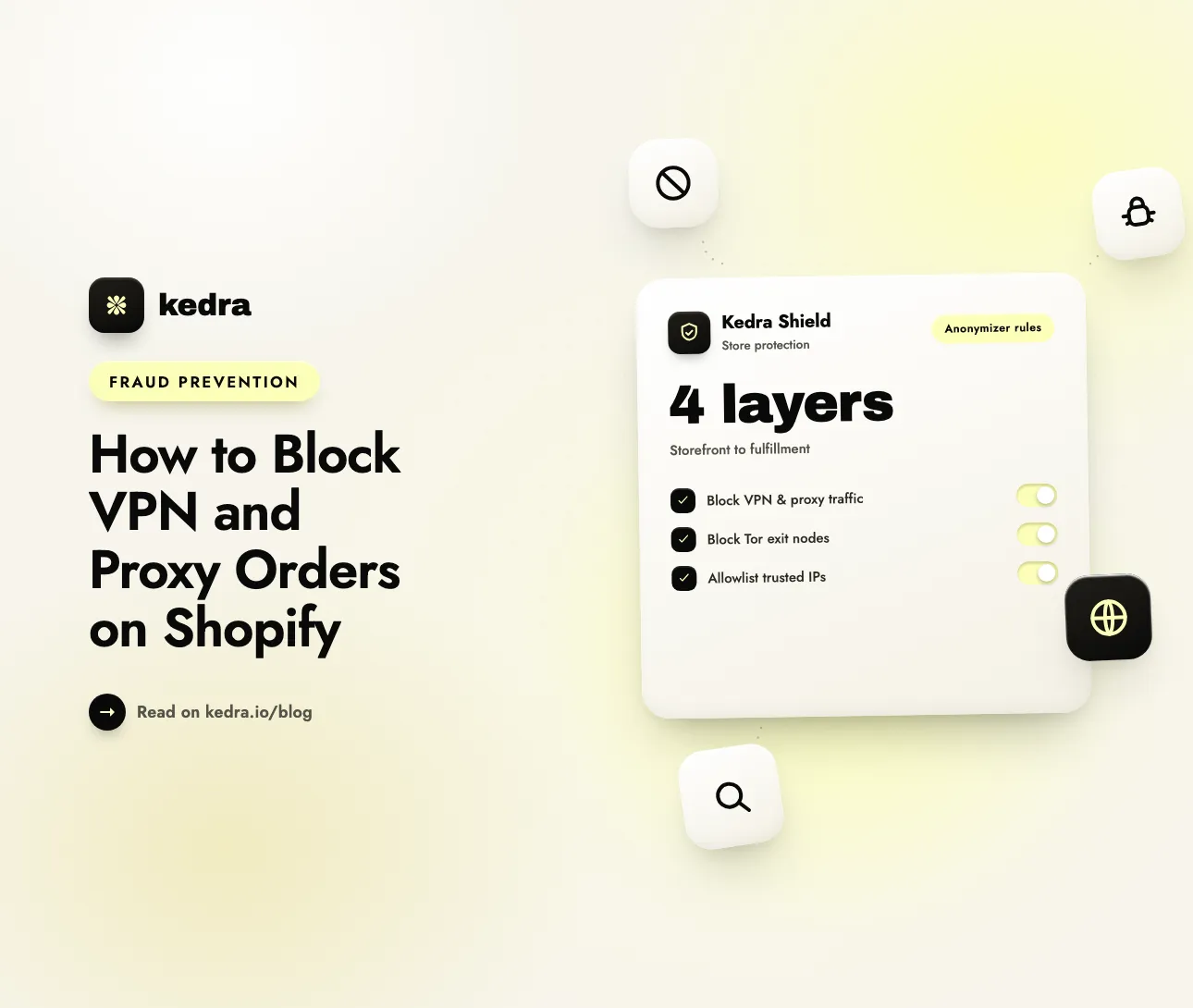
- Open VPN & Bot Blocker and enable “VPN & Proxy Blocking.” This single toggle covers commercial VPNs, web and anonymous proxies, Tor exit nodes, hosting-provider traffic, known scrapers, and compromised IPs.
- Leave “Block all VPN users” off. With it off, Kedra Shield blocks only VPN connections flagged as high risk. Turning it on blocks every detected VPN, including Apple’s iCloud Private Relay and corporate VPNs, which will cost you real customers.
- Leave “Allow business VPNs” on so shoppers browsing from a corporate network aren’t blocked.
- Leave “Block crawlers” off. Turning it on blocks Google, Bing, and social crawlers and will hurt your SEO.
- Enable “Bot Protection” in regular mode. Switch on “Enable strict blocking” later only if suspicious traffic keeps getting through.
- Click Save.
Every visitor gets a 0–100 risk score and a confidence rating. Low-risk visitors pass, high-risk visitors are blocked, and critical threats such as compromised servers and IPs with attack history are blocked regardless of your protection level. Low-confidence detections need a higher score before a block triggers, which keeps false positives down.
Plan note: the Free plan blocks up to 10 VPN/proxy visitors. Paid plans (from $7.99/month) remove the limit and add the city and ASN blockers. The full setting reference is in the VPN & Proxy Blocker docs.
Install Kedra Shield free and switch on VPN & proxy blocking. It takes about five minutes.
Step 2: Close the geo-bypass loophole with country and ASN rules
VPN blocking and country blocking need each other: a country block alone is bypassed by any VPN server in an allowed country, and a VPN block alone does nothing about unmasked traffic from regions you don’t serve. Turning both on closes that gap.
- Country and city rules. In the location blocker, either blacklist high-risk regions or whitelist only the markets you ship to. If you’re choosing between the two, our guide to a Shopify country whitelist explains when allow-only works better.
- ASN (network) rules, paid plans. Block an entire hosting network in one rule, for example
AS16509(Amazon Web Services) orAS14061(DigitalOcean), when your blocked-visitor log shows bots coming from it. Card-testing and scraping bots mostly run on cloud infrastructure, not home broadband. Our deep dive on ISP and ASN blocking covers which networks are worth blocking. - Be careful with major clouds. Kedra Shield allows Google, Amazon, Microsoft, Cloudflare, and DigitalOcean traffic by default so services like Google Shopping can reach your store. Only add an ASN block after you’ve confirmed the abuse in your logs, then test.
Step 3: Hold high-risk orders with Shopify Flow
Some masked orders will still reach checkout, so the second line of defense is to hold, not ship, any order Shopify’s fraud analysis rates high risk. Storefront blocking runs in the visitor’s browser and is designed to fail open during outages, so an order-level backstop is not optional.

Set it up in Shopify Flow, which is free on paid Shopify plans:
- Go to Apps > Flow > Create workflow > Browse templates and filter by Risk.
- Pick a starting template. The Shopify Help Center lists “Capture payment if order is not high fraud risk” and “Cancel and restock high risk orders.”
- Use the Order risk analyzed trigger, not Order created. Shopify’s guidance is explicit: fraud analysis takes time to finish, so an “Order created” workflow can fire before the risk level exists.
- Choose your action. For most stores, tag the order and hold fulfillment rather than auto-cancel, then review it by hand. Auto-cancel makes sense for high-volume, low-margin stores that can’t review every flag.
- If you use the capture-payment template, set payment capture to manual in your payment settings first. Shopify notes that capture workflows don’t work with automatic capture turned on.
When reviewing a held order, check whether the IP location matches the billing and shipping addresses, whether multiple cards were tried, and whether the email and phone look real. Our checklist of high-risk order indicators walks through each signal.
Step 4: Turn fraud orders into IP blocks
The final layer turns every confirmed fraud order into a storefront block, so the same IP can’t come back and try again. Kedra Shield’s Analytics > Fraud Orders tab receives Shopify’s fraud analysis by webhook and shows each flagged order with a risk level, Shopify’s recommendation (Accept, Investigate, or Cancel), a 0–100% risk score, and the customer’s IP address.
- Manual (all plans, including Free): click Block IP on any fraud order. The IP is added to your IP blocker blacklist with the order number noted.
- Automatic (paid plans): switch on Auto-Block Fraud IPs and set the risk threshold (default 70%, adjustable from 30% to 100%). Any incoming order at or above the threshold has its IP blacklisted automatically, synced to your storefront within 15 minutes.
This is what makes the setup self-improving: repeat card-testing attempts from the same source are stopped at the storefront instead of reaching checkout again.
How do you avoid blocking real customers?
Block by risk, not by the mere presence of a VPN, and give blocked shoppers a clear path forward. A third of U.S. adults use a VPN, and Apple’s iCloud Private Relay hides the IP of Safari users by default for paying iCloud+ subscribers, so a blunt “block every VPN” rule will catch loyal customers. Follow these rules:
- Keep “Block all VPN users” off unless you sell something with legal geographic restrictions.
- Allowlist known-good IPs. In the IP blocker, create a Whitelist entry for your office, warehouse, agency, and wholesale buyers. Whitelisted IPs skip every other rule, including VPN, country, and bot checks.
- Customize the block page. In Block Page, replace the default “Oops! Restricted area” text with a message that tells a genuine shopper what to do, such as turning off their VPN or emailing support, and add a button link to your contact page.
- Watch your blocked-visitor analytics weekly. Look for blocked visitors from your core markets on residential ISPs. Those are the likeliest false positives.
- Tighten only with evidence. Turn on strict bot blocking or new ASN blocks only after your logs show a real problem.
How do you test that VPN blocking works?
Test from outside your allowlist with a commercial VPN, then confirm the block appears in your analytics.
- Make sure your own IP isn’t whitelisted, or test from a phone on mobile data.
- Connect to a VPN server known for abuse (data-center-hosted free VPNs are the easiest to catch) and open your store in a private window.
- You should see your custom block page. Adding to cart and starting checkout should also be rejected.
- Check Blocked Visitors in Kedra Shield to confirm the visit was logged with the reason.
- Disconnect the VPN and confirm the store loads normally.
If the store loads through the VPN, check that the app embed is active on your published theme, that you haven’t hit the Free plan’s 10-block limit, and that your IP isn’t whitelisted. Also remember that blocked visits still show up in Shopify Analytics and Google Analytics, because analytics tools record the session before any app code runs.
Ready to stop masked orders before they cost you a chargeback? Install Kedra Shield on the Shopify App Store and have all four layers running today.
Frequently Asked Questions
Can I block VPN users on Shopify without an app?
No. Shopify has no native setting to block visitors or orders by IP address, VPN, proxy, or Tor. Without an app, the closest you can get is Shopify’s fraud analysis plus a Shopify Flow workflow that holds or cancels high-risk orders after they’re placed, which doesn’t stop masked visitors from browsing, scraping, or testing cards at checkout.
Will blocking VPNs block iCloud Private Relay users?
Only if you block every VPN. iCloud Private Relay is a VPN-style relay that Safari users on iCloud+ often have on by default. In Kedra Shield, leaving “Block all VPN users” off blocks only VPNs flagged as high risk, so most Private Relay shoppers can still browse and buy normally.
Does blocking VPN traffic stop all fraud?
No. VPN and proxy blocking removes a large share of automated and location-masked abuse, but residential proxies can look like ordinary home connections, and some fraudsters use their real IP. That’s why you pair storefront blocking with Shopify’s order risk analysis, a Flow hold on high-risk orders, and IP blocking of confirmed fraud orders.
Should I cancel or hold high-risk orders?
Hold them for manual review in most cases. Shopify’s own guidance for medium and high-risk orders is to confirm with the customer before fulfilling or consider canceling. Automatic cancellation saves time for high-volume stores but will occasionally refund a real customer, so reserve it for stores that can’t review every flagged order.
Will VPN blocking hurt my SEO?
Not if you configure it correctly. Search engine crawlers don’t use consumer VPNs, and Kedra Shield allows major cloud providers such as Google and Microsoft by default. Keep the “Block crawlers” setting off so Googlebot, Bingbot, and social crawlers can index your store, and avoid blocking major cloud ASNs without checking your logs first.
The bottom line
Blocking VPN and proxy orders on Shopify works as a layered system, not a single switch: a storefront gate for VPN, proxy, and Tor traffic, country and ASN rules to close the geo-bypass loophole, a Shopify Flow hold on high-risk orders, and IP blocks fed back from confirmed fraud. Set each layer to block by risk rather than blocking every VPN, allowlist your trusted buyers, and review your blocked-visitor data weekly.
Install Kedra Shield free on the Shopify App Store to switch on VPN, proxy, and Tor blocking in minutes, or see everything Kedra Shield protects first.